Ask for an MCP app and approve it
What you get: any signed-in person can ask for a new MCP server (an "app"). Nothing runs and no tool is available until an approver, a different person, approves the request. The request stays as the record of who asked, who decided, and which image digest or address was approved.
The steps, in short. A person sends a request in the console. An approver approves or denies it. Approval creates the Server. An admin then writes an access rule that gives a group the tools. Until that rule exists, nobody can call the server.
Who can do what
| Person | Ask for a server | Approve or deny | Write the access rule |
|---|---|---|---|
Anyone signed in to the console (role viewer) | Yes | No | No |
Member of the group ambit-approvers (role approver) | Yes | Yes, but not their own request | No |
Member of the group ambit-admins, or the bootstrap admin@ambit.local (role admin) | Yes | Yes, but not their own request | Yes |
The roles come from groups that your identity provider sends. See "Groups and console roles" in Install on your cluster. Nobody can decide on their own request. This includes admins. If an admin asks for a server, another approver or admin must decide.
1. Ask for a server
Open MCP servers in the console and choose Request a server. Fill in the form:
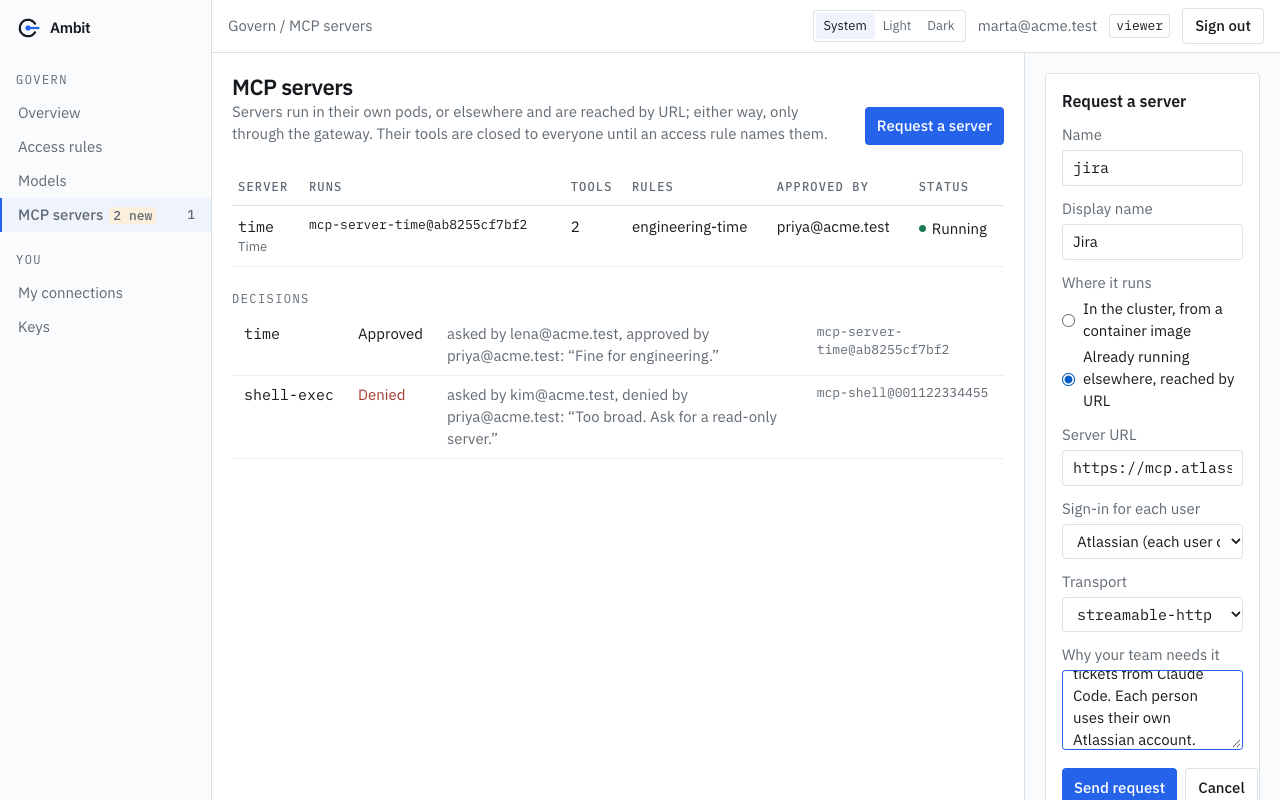
| Field | What to enter |
|---|---|
| Name | The name the server gets: lowercase letters, digits and dashes, at most 40 characters. Clients see its tools as <name>_<tool>. |
| Display name | A readable name for the console. Optional. |
| Where it runs | In the cluster, from a container image: Ambit starts the image. Or Already running elsewhere, reached by URL: Ambit only connects to it. |
| Image, pinned by digest | For an image. It must look like ghcr.io/org/server@sha256:<64 hex characters>. A tag is refused, because a tag can later point to different code. |
| Server URL | For a server reached by URL. It must look like https://host/path, without a query string or fragment. Plain http is accepted only for services inside the cluster (*.svc) and for localhost. |
| Sign-in for each user | Only for a server reached by URL. Choose the app connection when each person must sign in to the vendor with their own account. Admins add connections under Settings, Apps (see App presets). |
| Transport | stdio is the usual choice for an image. streamable-http or sse for a URL (a URL cannot use stdio). |
| Why your team needs it | Free text, at most 2000 characters. The approver reads it. |
Choose Send request. The console records your email address from your sign-in as the requester. You cannot type another name.
The console refuses a request when:
- the name is already used by a server, or by another request that still waits for a decision;
- both an image and a URL are given, or neither;
- the image is not pinned by a digest, or the URL is not valid;
- the connection you chose does not exist.
A request cannot be changed after it is sent. If something is wrong, ask for the server again with the corrected values. An approver can deny the first request.
2. Approve or deny
An approver sees the request under Waiting for an approver on the MCP servers page. The card shows the name, who asked, the image digest or URL, the transport and the reason.
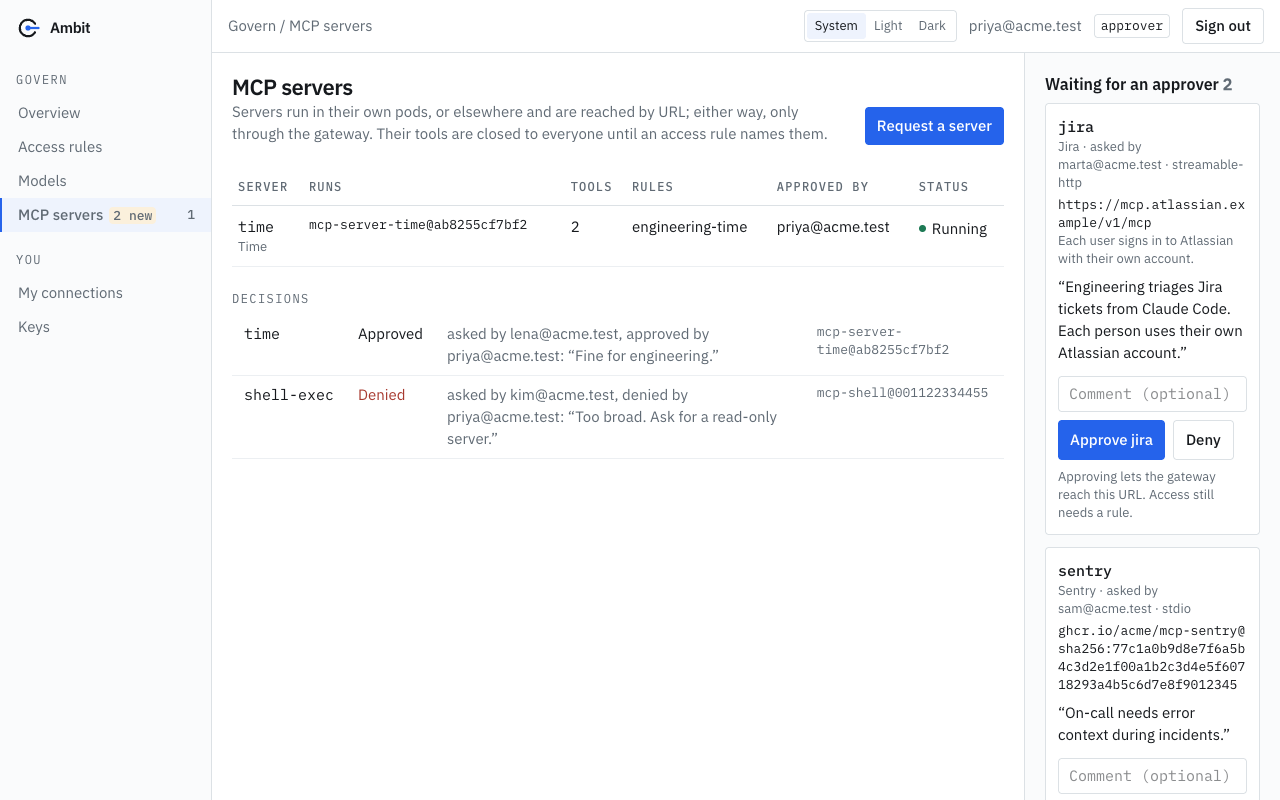
Check these before you decide:
- Image: the digest is exactly the code that will run. Approving starts exactly this digest.
- URL: approving lets the gateway reach this address.
- Reason: does the team need it?
- Access: the card reminds you: "Access still needs a rule." Approval alone gives nobody the tools.
Write a comment if you want the requester to know why. The comment is optional, at most 2000 characters, and is kept with the decision. Then choose the Approve or Deny button. Each button carries the server name, for example Approve jira.
Approve creates the Server with the name and settings from the request. The server starts (image) or is checked (URL). Its tools are closed to everyone until an access rule exists.
Deny creates nothing. The request stays in the Decisions list with your comment.
A decision cannot be changed. If two approvers decide at the same moment, the second one gets the message "someone else decided on this request first".
If the name of the server was taken by someone else after the request was sent, approval fails with "a server named ... already exists; deny this request".
GitOps mode
When the console runs in GitOps mode, approval does not change the cluster. It opens a pull request in your configuration repository with the Server. The request is marked Approved at once and shows a link to the pull request. The Server appears when someone merges the pull request and Argo CD applies it. The merge is a second review. If the pull request is closed without a merge, the request still says Approved, but no server exists. See Install on your cluster, section "Argo CD and GitOps".
3. Give a group the tools
Approval does not give anyone access. An admin writes an access rule that names the server, the groups and, if wanted, single tools. Follow step 1 of Give an agent tools and apps. For a server with a sign-in for each user, an admin must also choose Use my account to read tools on the MCP servers page, so that the tools are known. See App presets.
What is recorded
| Where | What it holds |
|---|---|
The ServerRequest object in the namespace ambit-system | Spec: the server name, the full server settings (the image digest or URL, the transport, the connection), the reason, and requestedBy. The creation time is the time of the request. Status: decision (Approved or Denied), decidedBy, decidedAt, comment, and pullRequest in GitOps mode. Kubernetes refuses a change of the spec and a change of a decision. The object is kept after the decision. |
The Server object | The annotations ambitproject.dev/requested-by, ambitproject.dev/approved-by and ambitproject.dev/server-request (the name of the request). The console shows them as Approved by and "asked for by". |
| The console | The Decisions list under the servers: who asked, who decided, the comment, and the pull request link. |
| The log of the console pod | One line for each request, approval and denial, with the request, the server, the image or URL, and the emails. |
Read the records with kubectl:
kubectl -n ambit-system get serverrequests.ambitproject.dev
Example output (made-up names; the columns are those of the ServerRequest definition):
NAME              SERVER   REQUESTED BY      DECISION   DECIDED BY
jira-x7k2p        jira     marta@acme.test   Approved   priya@acme.test
The Audit page does not list requests and decisions. It lists the calls that pass the gateway. After approval, calls to the new server's tools appear there. To answer "who approved this server and which image?", use the ServerRequest, the Server annotations or the Decisions list.
What was checked
The screenshots were made with a mocked console API and made-up data. The request, approval and denial flow was read from the code and the unit tests. It was not run on a cluster, and the kubectl output above is an example.
Related
- Give an agent tools and apps: access rules for the tools of a server.
- App presets: servers that need a personal sign-in at the vendor.
- Install on your cluster: console roles, single sign-on and GitOps.
- Compliance and audits: how the roles and the separation of duties map to controls.